This is default featured slide 1 title

Go to Blogger edit html and find these sentences.Now replace these sentences with your own descriptions..

This is default featured slide 2 title

Go to Blogger edit html and find these sentences.Now replace these sentences with your own descriptions..

This is default featured slide 3 title

Go to Blogger edit html and find these sentences.Now replace these sentences with your own descriptions..

This is default featured slide 4 title

Go to Blogger edit html and find these sentences.Now replace these sentences with your own descriptions..

This is default featured slide 5 title

Go to Blogger edit html and find these sentences.Now replace these sentences with your own descriptions..

Showing posts with label Tutorial. Show all posts

How to Install Orange Theme For PMP Light ROM and Stock ROM For Samsung Galaxy S Duos (GT-S7562)


Step 1: Download and extract Samsung Galaxy S duos “Rooting kit“ on your computer.
Step 2: Switch Off your phone, take out the battery and insert it back. Now boot your phone into Download Mode by pressing and holding the Volume Down + Home button together, and then press the Power button till you see the Android Construction logo. Once again press Power button to confirm.
Step 3: Open “Odin.exe” (from extracted folder) and connect your phone via USB cable with your computer in download mode. If your phone is connected successfully the one of the ID:COM boxes will turn yellow. 
Step 4: Click on “PDA” button and select file “recovery.tar” (from extracted folder).
Step 5: Please make sure that only F. Reset Time and Auto Reboot options are checked on Odin.
Step 6: Now, click on the Start button on Odin to start the installation process. Installation will take a few minutes to complete so please wait for the complete process.
Step 7: Finally, when the installation process is completed successfully you will see the “PASS” message on Odin and then your device will reboot automatically. When the phone boots up (vibrates) then immediately remove the battery and after 1-2 minutes start your phone.
Step 8: Download “OrangeTheme_PMP.zip” on your computer..
Step 9: Now, placed the “OrangeTheme_PMP.zip” in the SD card.
Step 10: Switch off your phone to boot into recover mode by press and holding Volume Up+Down + Home button together, and then press the Power button.
step 11: From the recovery menu, select “Install zip from sdcard” and go to path where you have placed “OrangeTheme_PMP.zip” and select it. Installtion will take 2-3 minutes.
Step 12: When the installtion process is completed select “++++Go Back++++” and then choose “reboot system” to reboot your phone.

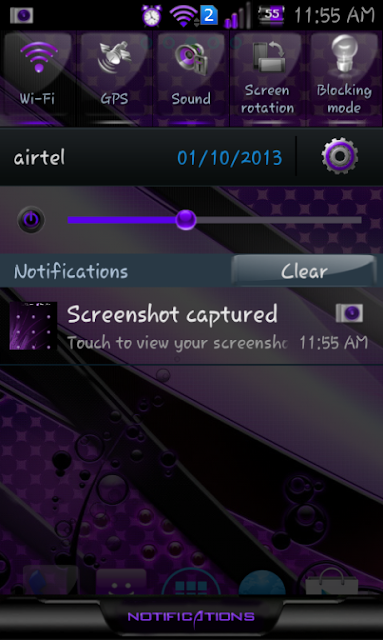
How to Install PurpleXtreme Theme V1 For Samsung Galaxy S Duos (GT-S7562)


Step 1: Download and extract Samsung Galaxy S duos “Rooting kit“ on your computer.
Step 2: Switch Off your phone, take out the battery and insert it back. Now boot your phone into Download Mode by pressing and holding the Volume Down + Home button together, and then press the Power button till you see the Android Construction logo. Once again press Power button to confirm.
Step 3: Open “Odin.exe” (from extracted folder) and connect your phone via USB cable with your computer in download mode. If your phone is connected successfully the one of the ID:COM boxes will turn yellow. 
Step 4: Click on “PDA” button and select file “recovery.tar” (from extracted folder).
Step 5: Please make sure that only F. Reset Time and Auto Reboot options are checked on Odin.
Step 6: Now, click on the Start button on Odin to start the installation process. Installation will take a few minutes to complete so please wait for the complete process.
Step 7: Finally, when the installation process is completed successfully you will see the “PASS” message on Odin and then your device will reboot automatically. When the phone boots up (vibrates) then immediately remove the battery and after 1-2 minutes start your phone.
Step 8: Download “PurpleX_Theme-GT-S7562.zip” on your computer..
Step 9: Now, placed the “PurpleX_Theme-GT-S7562.zip” in the SD card.
Step 10: Switch off your phone to boot into recover mode by press and holding Volume Up+Down + Home button together, and then press the Power button.
step 11: From the recovery menu, select “Install zip from sdcard” and go to path where you have placed “PurpleX_Theme-GT-S7562.zip” and select it. Installtion will take 2-3 minutes.
Step 12: When the installtion process is completed select “++++Go Back++++” and then choose “reboot system” to reboot your phone.

How to Root and Install CWM Recovery on Samsung Galaxy S Duos GT - S7562

After the Samsung Galaxy S2, we all know that the best and the cheapest phone in the whole Galaxy series is Samsung Galaxy S Duos S7562. It possess some authentic features like dual SIM (GSM + GSM), runs on Android 4.0 ICS, powered by the 1 GHz Cortex-A5 processor with 768 MB RAM and much more. We are not here to discuss the features, but apart of that we incorporate some more features by rooting your device. Own this Smartphone? Then for you only, here is the guide on “How to Root and Install CWM Recovery on Samsung Galaxy S Duos GT - S7562“.
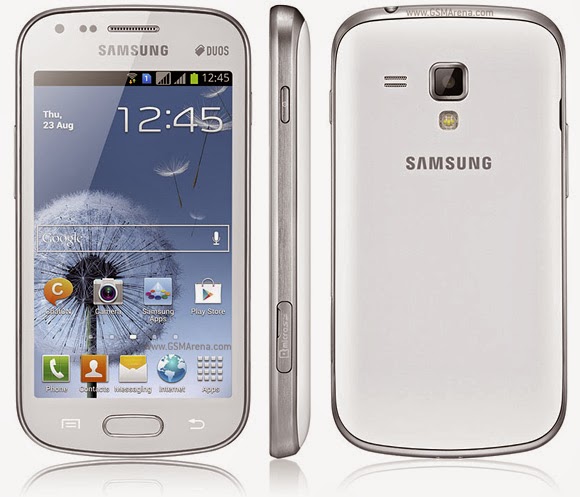
How to Root Samsung Galaxy S duos S7562 and Install CWM Recovery

Prerequisite:

1. Make sure your mobile should possess 70 to 80% battery
2. Enable USB debugging mode (Menu (app drawer) > Settings > Manage Applications > Development > USB Debugging – check box)
3. Ensure that you have backed up your all important data.
4. Install Samsung Galaxy S Duos S7562 USB drivers. (Download USB drivers or download Samsung Kies (drivers included))
Disclaimer: Rooting your device voids will void its warranty. We are not the developers (http://techscot.blogspot.com) if anything happens to your phone while performing mentioned tutorial then don’t blame us. And the strict instruction, this root method is only for Samsung Galaxy S duos S7562 so don’t try on any other phone. Follow the tutorial as per your own risk ;)

Step by Step Guide on:

How to root Samsung Galaxy S duos

Step 1: Download and extract Samsung Galaxy S duos “Rooting kit“ on your computer.
Step 2: Switch Off your phone, take out the battery and insert it back. Now boot your phone into Download Mode by pressing and holding the Volume Down + Home button together, and then press the Power button till you see the Android Construction logo. Once again press Power button to confirm.
Step 3: Open “Odin.exe” (from extracted folder) and connect your phone via USB cable with your computer in download mode. If your phone is connected successfully the one of the ID:COM boxes will turn yellow. 
Step 4: Click on “PDA” button and select file “recovery.tar” (from extracted folder).
Step 5: Please make sure that only F. Reset Time and Auto Reboot options are checked on Odin.
Step 6: Now, click on the Start button on Odin to start the installation process. Installation will take a few minutes to complete so please wait for the complete process.
Step 7: Finally, when the installation process is completed successfully you will see the “PASS” message on Odin and then your device will reboot automatically. When the phone boots up (vibrates) then immediately remove the battery and after 1-2 minutes start your phone.

(Install CWM Recovery)

Hurray! Your Samsung Galaxy S duos S7562 now has been rooted and you can check the Super app installed on your device. In case, if you want to verify then download this Root Checker application and verify it by yourself only.
Wait! The guide is not over yet. You know which application is essential to install Custom ROM? No? It’s ClockWorkMod and you can see this application when you are in recovery mode. And that’s its called CWM Recovery. So, if you want to install CWM Recovery then follow the remaining steps.
Step 1: Now, placed the “CWM Recovery file” in the SD card.
Step 2: Switch off your phone to boot into recover mode by press and holding Volume Up+Down + Home button together, and then press the Power button.
step 3: From the recovery menu, select “Install zip from sdcard” and go to path where you have placed “CWM Recovery file” and select it. Installtion will take 2-3 minutes.
Step 4: When the installtion process is completed select “++++Go Back++++” and then choose “reboot system” to reboot your phone.

That’s it, you have successfully install CWM Recovery on Samsung Galaxy S duaos S7562. So, it is the complete step by step guide on “How to Root Samsung Galaxy S duos S7562 and Install CWM Recovery“. If you encounter any problem then put your problem/queries below via comments and we will surely help you! Happy Rooting

Video Tutorial :-

How to Upgrade Android Version on Samsung Galaxy y s5360


Download all software look down
(Sorry Now don't download Update 08.1.2013) [IF keyboard problem Go to- Settings- Locale & text- Select language (choose your language) and go back -swype- Show tips tick that and finsh]

Aurora V2 - http://www.mediafire.com/?buvb7zpwela...
ICS Aura V1 final - http://www.mediafire.com/?1lckg7r48j0...
Skin1980-GT-S5360 CWM - http://www.mediafire.com/?rl377mp335d...
update- http://www.mediafire.com/?zl8fc06mhqf...

and this software i did't not made this software i just show you how to use....

Warning: DO THIS AT YOUR OWN RISK! I AM NOT RESPONSIBLE IF YOU DAMAGE YOUR DEVICE!
Samsung Galaxy young Y GT-S5360...


How to Increase Internal Phone Memory of Samsung Galaxy Y - S5360

Error message when internal memory is full.

Disclaimer:
Techscot.Blogspot will not be held responsible for any loss of data caused by following these instructions, please do every step carefully and at your own risk!

As you all know the Samsung Galaxy Young has very low internal memory unlike the bigger smartphones out there with gigabytes of space while our little Y has only 160MB.
Sometimes it can be a huge pain when some apps install on your memory and you keep getting messages like "insufficent memory available" or "uninstall some applications", sometimes you even get notifications on the screen such as "internal memory nearly full", etc.

All you need for this procedure is an SD card with some memory you are willing to sacrifice of, ClockworkMod recovery to help us partition the SD card, Link2SD to move the apps automatically to the 2nd partition (this option is enabled by default) and ofcourse, a rooted phone.

Before everything, please make a complete backup of your files from your SD card to some folder in your computer.

Download CWM - Click here
Download Link2SD from the Play Store:
Once you downloaded CWM on your sd card and installed Link2SD, proceed with the video instructions:


And that is how you partition your SD card to get more memory for your apps.

Edit photos without Photoshop

Microsoft's Windows Live Photo Gallery Family Photo editing helps. Photo taken it to download for free and can be given even dimension.
There is no need to make your family photos, Adobe Photoshop Prejentebl good - decent amount of money to spend. Microsoft's Windows Live Photo Gallery will make it work, that too absolutely free.Need to download it is over, after which several features photos taken by you of good memories associated with them will be cherished.
Great use auto-adjusting windows Live Photo Gallery to download the'Edit'tab,select options, the photo is attached to the normally plugged. Commonly used photos from the finish is completely on its own, but if you want to do something and then 'Settings' can help choose the desired option.
Crop desired size parts of the photo is cropped to give him what size, makes it possible crop tool. The 'Prporshn' is the option to choose.
Red Eye Clear Usually in the eyes of the people in the photos taken with digital cameras could see little red dot.Menu bar has been in the works to remove 'Red Eye' button. It helps to show the normal eye. 
Re - Touch tool to clean This option is similar to Photoshop's Healing Brush. Background of the photo to help remove unwanted things or people.
Change Color and Exposure'Color' or 'exposure' photographs with the help of the button changes the color and exposure.The good thing is that the selected option to the final review before it can be seen. What will change in the photo, it may already be known. It has been 'fine tune' the brightness snapshots including Contrast, Shadow lets change. It can be manipulated with the photo.
And much more If these features are not satisfied with the 'Create' tab from the "More Tools" select the option.The 'Download More Photos Tools' option you choose, Microsoft Live Photo Gallery plug-in will be accessible on the site, where you can select your choice of tools.
Where to Eat: http://explore.live.com/windows-live-essentials-photo-gallery-get-started